
Visor: My Hyprland Shell
Visor is the shell I’ve been building for my Hyprland desktop, using Quickshell. It replaces my old bar and its Hud popup with an island at the top of the screen. The island expands to show the launcher, control center, calendar and notifications. It’s merged into my dotfiles now and runs my laptop’s desktop.

The workspaces are lettered rather than numbered. The active one gets a filled shape. The right side changes with the context: music, a repository or an agent. There is also a notch form, attached to the top edge of the display.
Hovering opens the media controls, date and system status. The line underneath comes from the current theme pack.
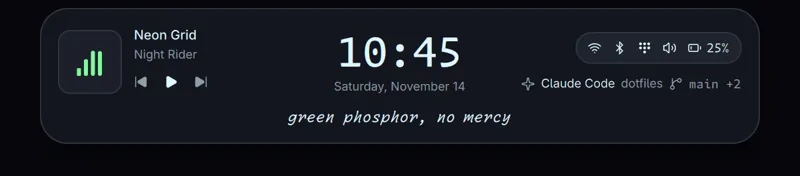
Clicking the clock opens the calendar. The status pill opens the control center. Clicking the empty space pins the island open, so it stays there when the pointer leaves.
The Crew
The bots in the bar represent running agents. Their appearance changes with their state: working, waiting for me, or idle. Opening the Crew panel shows which agent is doing what, along with its project and today’s reported spend.
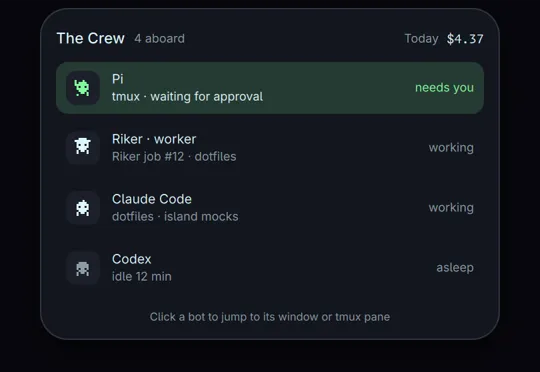
The feed combines Fleet for tmux sessions with a process scan for agents running elsewhere. Selecting a bot jumps to its window or tmux pane.
When an agent starts needing attention, Visor opens a hail with a button to go to it.

These screenshots use sandbox fixtures. The agents, session details and spending shown are test data, not a report of what the build cost.
Looks and themes
After seeing the initial mocks in Claude Design, I asked:
I like this, but can we have more personalization? More… me?
An early version included a pixel-art avatar of me. My response:
hmm, I don’t think I want to use the Nick guy… I tried that and it felt kind of kludgy
The avatar came out. The lettered workspaces, Crew bots and theme taglines stayed. There are also switchable looks for the bar:
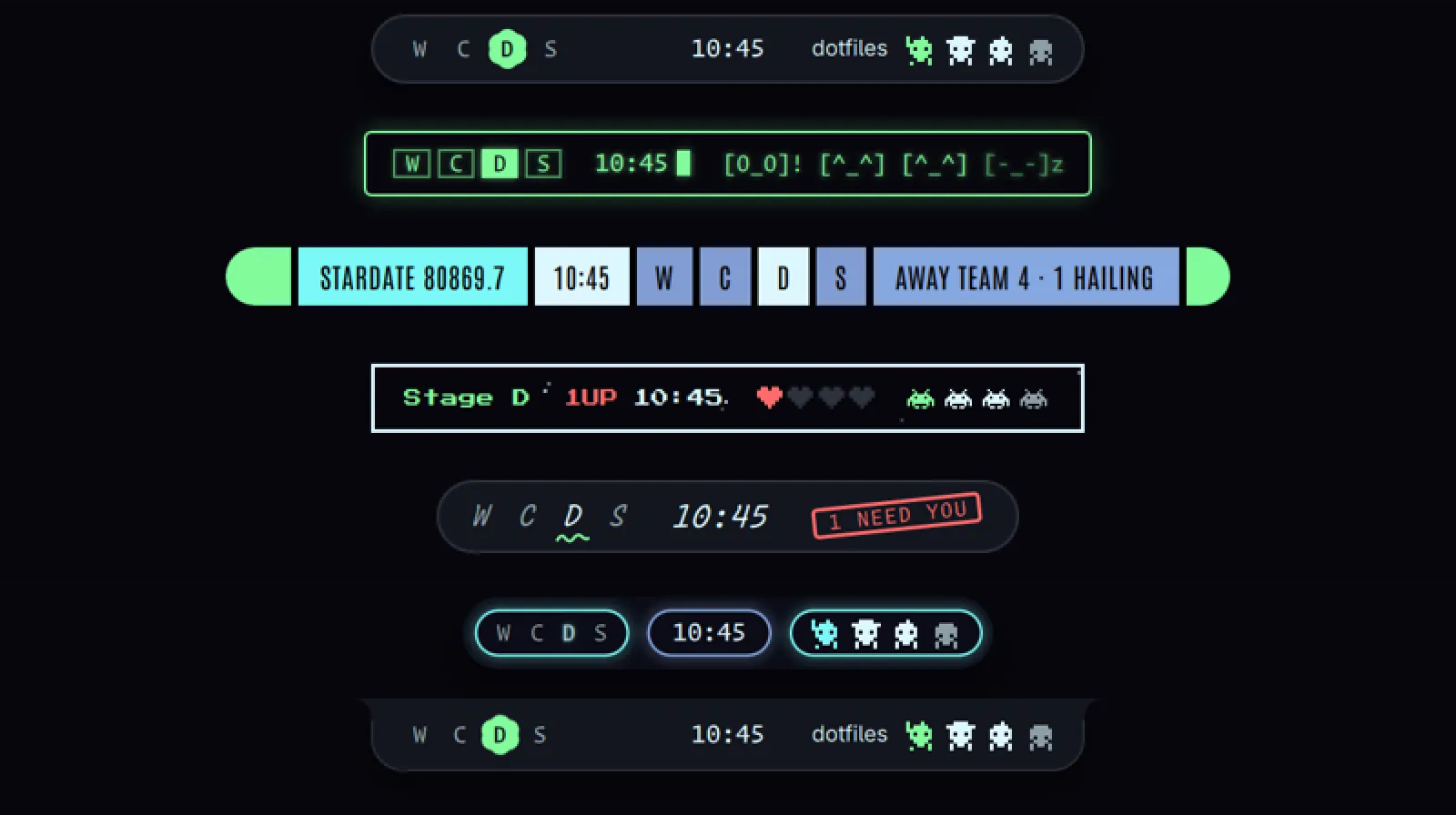
Phosphor uses terminal-style text and a cursor. Bridge has a stardate and an away-team count. Arcade uses hearts and invaders. Liner Notes has handwritten workspace labels and a stamp when an agent needs attention. Outrun separates the workspaces, clock and bots into neon outlines.
A look changes the bar’s layout and typography. The theme pack supplies its colors. Opening the control center or launcher still gets the same panel layout, whichever look is selected.
The theme picker shows my 37 installed packs with their wallpapers. Moving the selection previews the palette on the shell; Enter applies it. Esc clears the filter first, then closes the picker and cancels the preview.
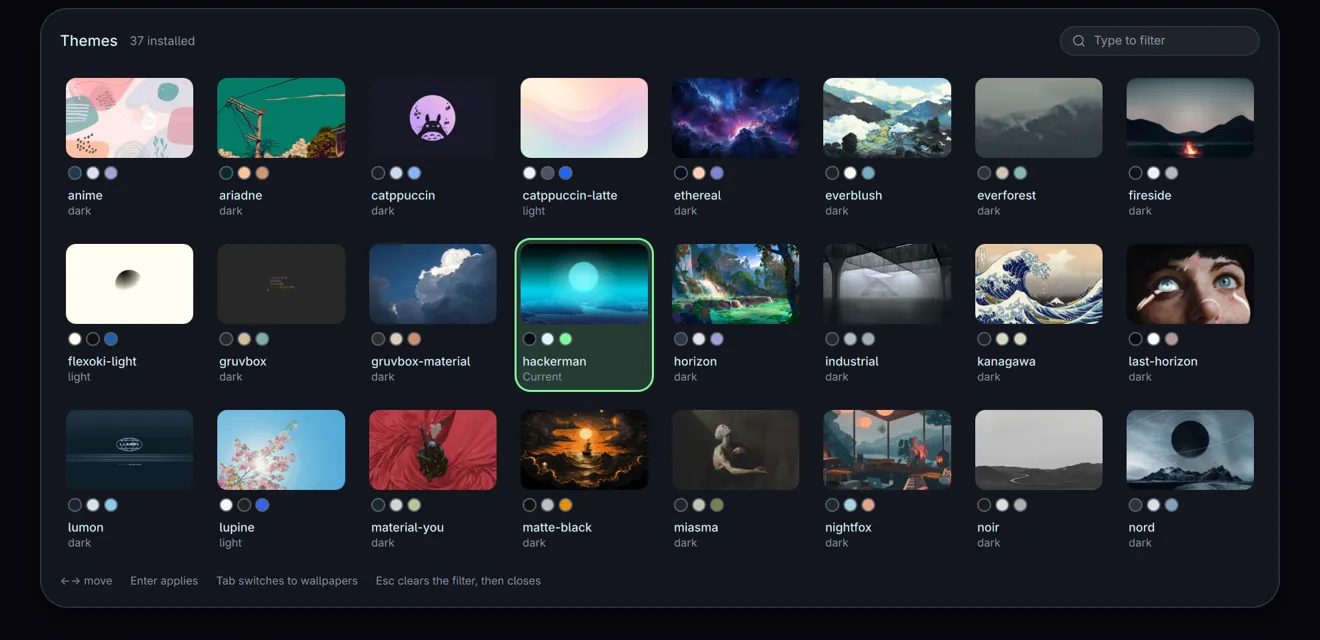
The looks have contrast checks across the theme packs. Where a look’s preferred color is too close to its background, it uses the pack’s foreground color instead.
Launcher and controls
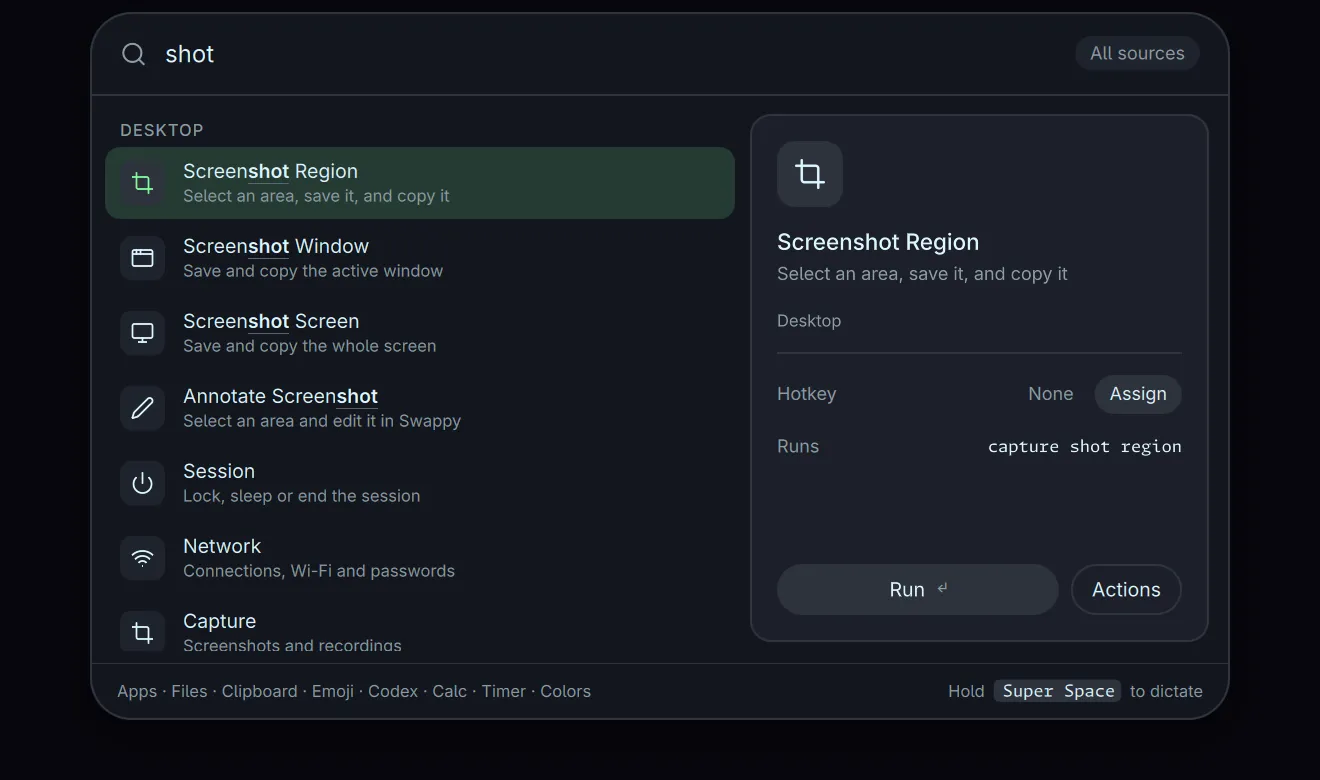
The launcher uses the existing search providers: apps, files, clipboard history, emoji, calculations, timers and colors, plus a Codex chat. Its view now opens inside the island. Holding Super+Space starts dictation.
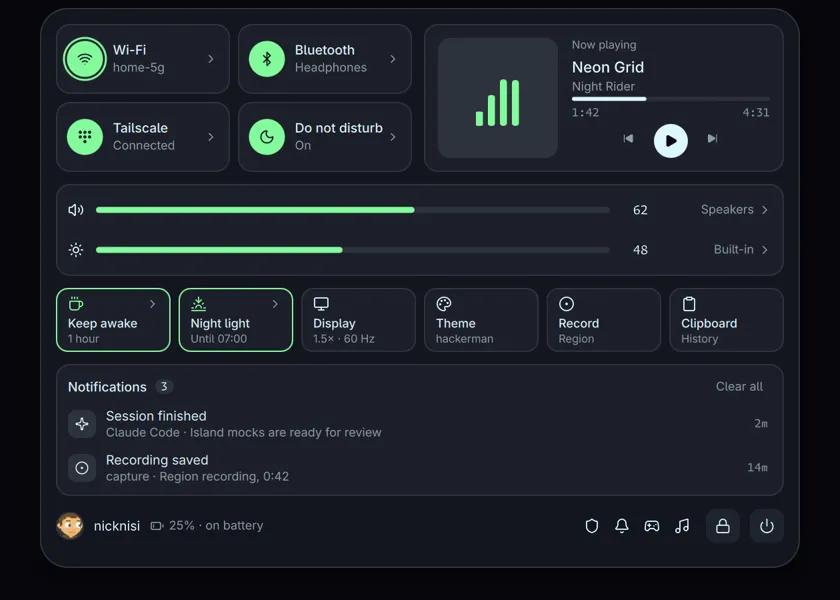
The control center puts connectivity, media, volume, brightness and notifications in the same panel. Wi-Fi, Bluetooth and Tailscale open detail sheets. The smaller controls below the sliders include keep-awake, the night light, display settings, themes, recording and clipboard history.
Keys, corners, night light and sleep
The keybinds go straight to the shell now, as Hyprland global shortcuts. Before, the launcher, dictation and clipboard keys each ran qs ipc call, which starts a new process on every press. In the sandbox, Super+Space to an open launcher went from about 168 ms to 99 ms, and Super+V to the clipboard went from 154 ms to 76 ms. Super+Alt+C and Super+Alt+D open the control center and the calendar.
The screen corners are rounded too. They default to 14 px, the same radius as the cards and panels, and the Display sheet switches them between rounded and square.
The night light drives the hyprsunset service I already run. It takes the power mode button’s spot in the control center, with a warmth setting that defaults to 4000 K and an optional schedule.
Before the laptop sleeps, the screens fade to black over 0.4 seconds. The sandbox tests that against a fake logind, and it hasn’t been through a real suspend yet.
The lock card, the password prompt and the control center show a profile picture now in place of an initial. It reads ~/.face, the traditional spot for one on Linux, then the AccountsService icon, then falls back to the initial. Mine is the pixel-art beef guy from this site, the same character as the avatar I cut. That one was an animated sprite; this is one still picture I picked. It’s in the control center’s footer above. The lock screenshot below is from before it landed.
Lock screen
The lock screen uses the theme’s wallpaper and a separate Quickshell process for authentication through PAM. The shell-lock wrapper falls back to hyprlock if the new lock does not confirm that it secured the session.
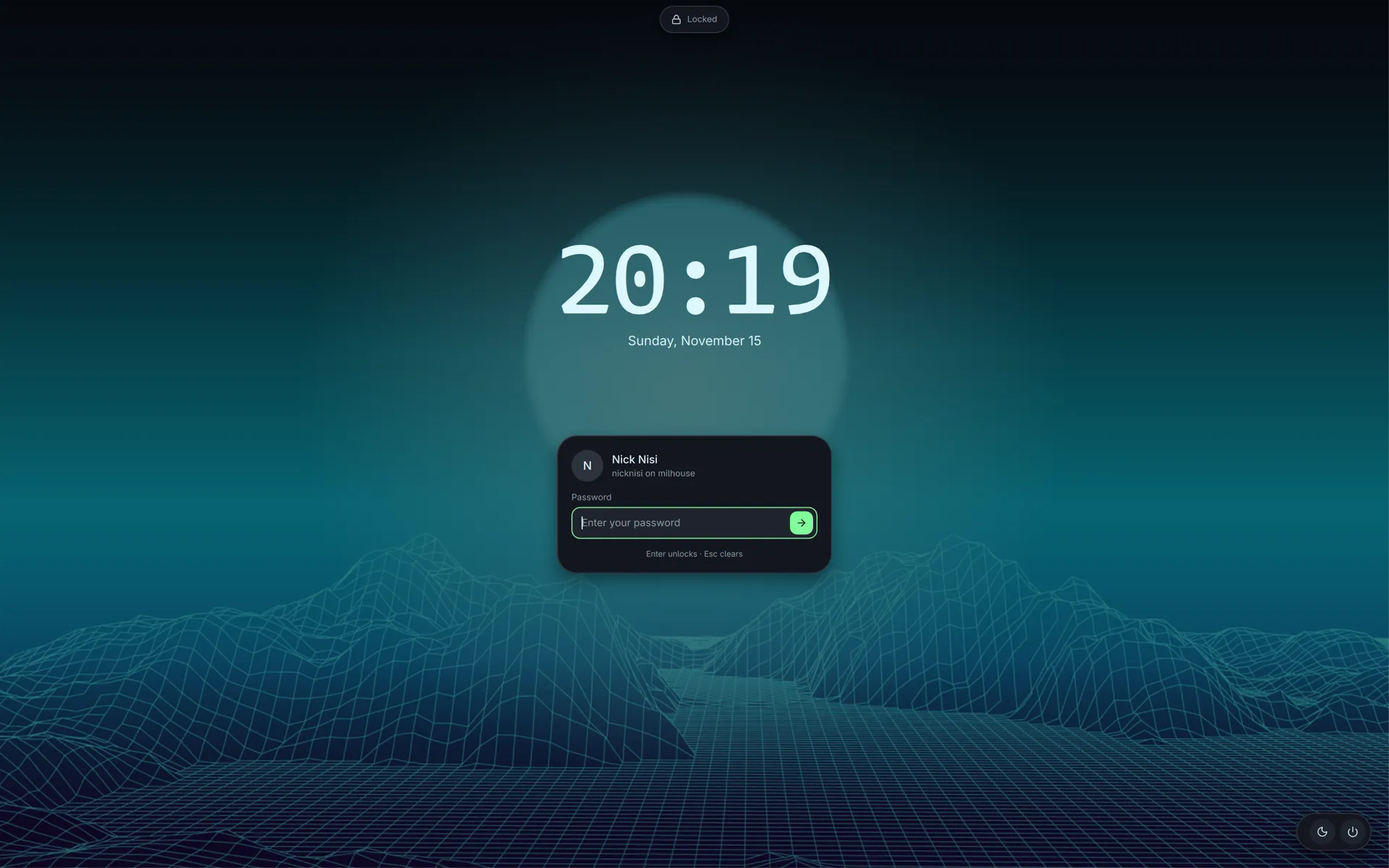
The polkit password prompt for system actions has a matching view inside the island. Enabling it is a separate step in the switch-over instructions, after testing the lock.
The screenshots here come from a headless, nested Hyprland session. That lets the agents render specific states and measure the result against the mocks. It doesn’t test real passwords, keyboard focus on the laptop, or suspend and resume. The switch-over checklist keeps those as real-hardware checks.
On my Mac
My dotfiles also run my Mac, where there’s no Hyprland or Quickshell. On macOS I use OmniWM, a tiling window manager. Its config in config/omniwm is ported from my Hyprland config, with the same nine numbered workspaces and eight lettered ones. Option stands in for Super, so Command shortcuts stay with the apps. Option+D goes to the development workspace, and adding Shift sends the focused window there instead. App rules put the first window of Ghostty on D, Slack on S and the browsers on W. OmniWM reloads settings.toml as soon as it changes, so there’s no restart step.
OmniWM has its own shell, with bar widgets written in Luau, and the Mac bar got there first. Its agents widget landed on November 11 and the switchable looks on November 12, two days before Visor’s first commit. Visor’s Crew bots, its looks and the shapes behind the focused workspace all started on the Mac. The shapes come from OmniWM’s own shape library, and my looks build on Wayline, a bar style by OmniWM’s author, OmniNull.
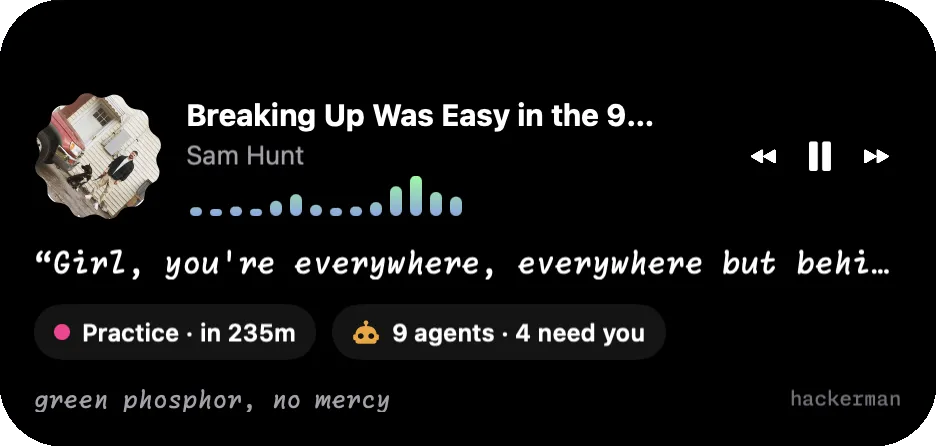
Each look is an OmniWM shell profile, a folder under config/omniwm/shell/ with its own theme and layout. They all share one set of widgets: agents, status, notifications, the island, Prairie and a calendar chip. shell.toml names the active profile, and bar <look> switches it with omniwmctl shell profile. The Mac has eight looks: Crew (the Wayline-based one), Phosphor, Liner, Sky, Outrun, Bridge, Arcade and Blueprint.
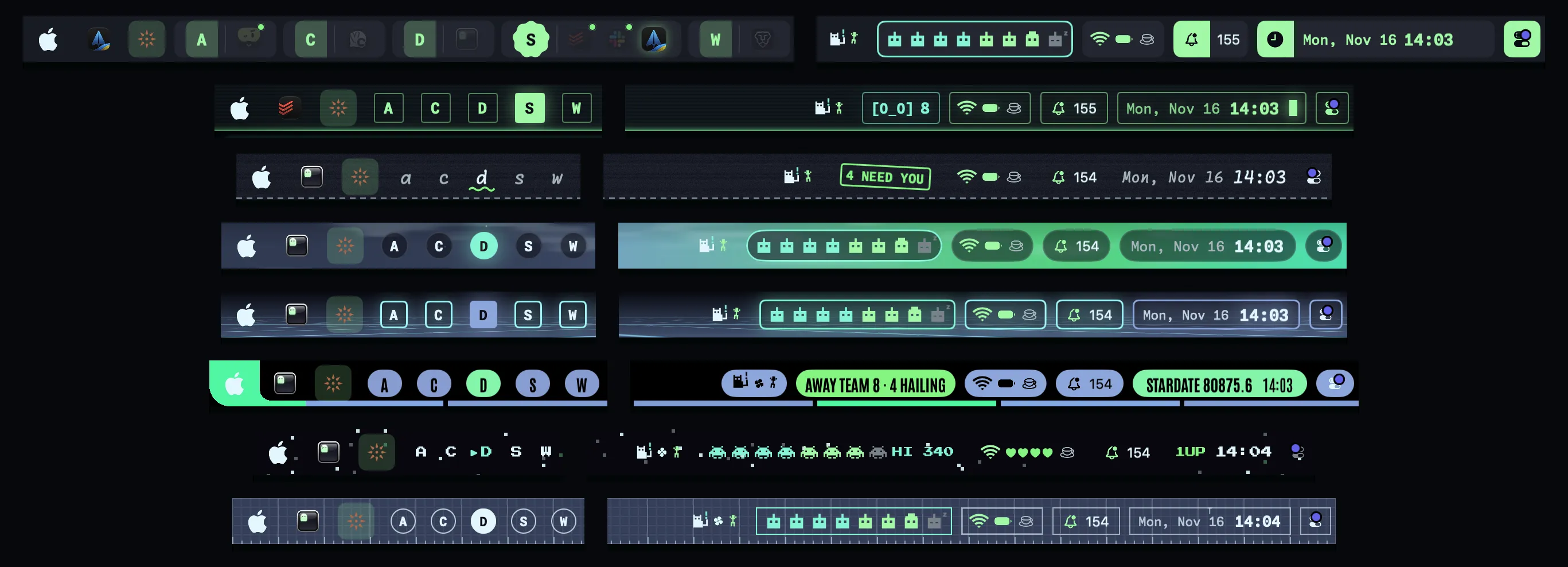
Unlike the Visor screenshots, these come from my real desktop, with each bar cropped to its two ends. The window title and the notch in the middle are cut out. The agents are real too, which is why Liner and Bridge say four of them need me.
The scripts are shared. bin/omniwm-agents finds running agents on both systems. On the Mac a LaunchAgent runs it every 15 seconds and pushes the JSON into the bar with omniwmctl shell set agents, and on Linux Visor reads its output. theme switches the pack on both, copying the palette and tagline into OmniWM on the Mac. bar phosphor switches the look on whichever machine I’m sitting at. A second LaunchAgent runs omniwm-monitors whenever a display connects, adding gap and window-size settings for any screen that doesn’t have them yet.
The Mac’s island wraps the MacBook’s notch and grows wings for a meeting that’s about to start, music, or a keep-awake timer. Clicking the notch opens it to the current song, with synced lyrics and playback controls, plus chips for the next event and the agents. The theme pack’s tagline sits along the bottom, like the line under Visor’s hover view. It only opens by itself for a few seconds when a meeting is about to start or I switch theme packs.
The Mac bar also has Prairie, a pixel cat that naps when the machine is idle, gets the zoomies when it’s busy, ducks out of sight while the camera is on, and perks up with a ”!” when an agent needs me.
Nick Nisi
Staff engineer and engineering manager building the systems and practices that help technical teams work differently with AI.